Design-and-Use-of-Relational-Databases
Content and goals
Ideally, in the software and database development life-cycle, we would next implement our design (i.e. relational model) with SQL. However, as this implementation requires some knowledge about the language and the queries, we first learn the basics of SQL with queries, and then turn back to database implementation in the next tutorial.
The SQL language is a tool that can be used to implement and utilize the relational model in practice. Relational databases usually follow the relational model, but implementations of the SQL language may have small differences in both features and commands. You should check the details when you know what “brand” of database will be used (PostgreSQL, MySQL, MariaDB, SQLite, …). The SQL language can be used to both create a database and make various queries and updates to it.
This tutorial focuses on data retrieval using SQL queries. The purpose of the tutorial is to learn:
- the elements of an SQL query: SELECT, FROM, WHERE
- merging tables with WHERE clause
- renaming tables and columns
- removing duplicates with DISTINCT
- organizing the results with ORDER BY Our database management system in Ville is called SQLite. It is much used all over the world, and you can find more information about its specification here: https://www.sqlite.org/. Very informative tutorial to SQLite specific commands is here: https://www.sqlitetutorial.net/. However, we try to use as much standard SQL as possible. Very good source for more standard SQL commands (although with MySQL, Microsoft and Oracle emphasis) is here: https://www.w3schools.com/sql/default.asp
Structured Query Language (SQL) and introduction to databases in use
The introduction of standardized SQL was an important reason for the popularization of relational databases.
SQL (= Structured Query Language) functions as both a data definition (DDL, data definition language) and an actual query language (DML, data manipulation language). Sometimes, queries (DQL, data query language) are differentiated from DML commands such as INSERT, UPDATE and DELETE, which are not used for querying.
SQL is a relatively simple high-level language that describes the operations you want to perform on the relational database. SQL is declarative in nature; i.e. when constructing surveys, it is only important to present the desired goal.
The SQL-99 standard is divided into so-called to the core, which belongs to every SQL environment, as well as supplementary packages with additional features (e.g. for data mining, data storage, multimedia, etc.). Since, the standard has been updated almost every third year. Read the history and enhancements of the language here: https://learnsql.com/blog/history-of-sql-standards/
Database in examples
The database used in the tutorial examples is called a Company database. It is already familiar to you from the previous exercises and examples, however minor changes can exist.
The final relational schema with the implemented table and column names is represented in the picture below. You can always come back and check this representation of the Company, yet we recommend you to download the picture to your local computer, in order to keep it easily avalaible.
The number one rule and a prerequisite in creating queries with SQL is to “know your database”. Therefore, knowing column names, table connections etc. helps you understanding how the query language works.
The relational model of a Company database used in the SQL examples
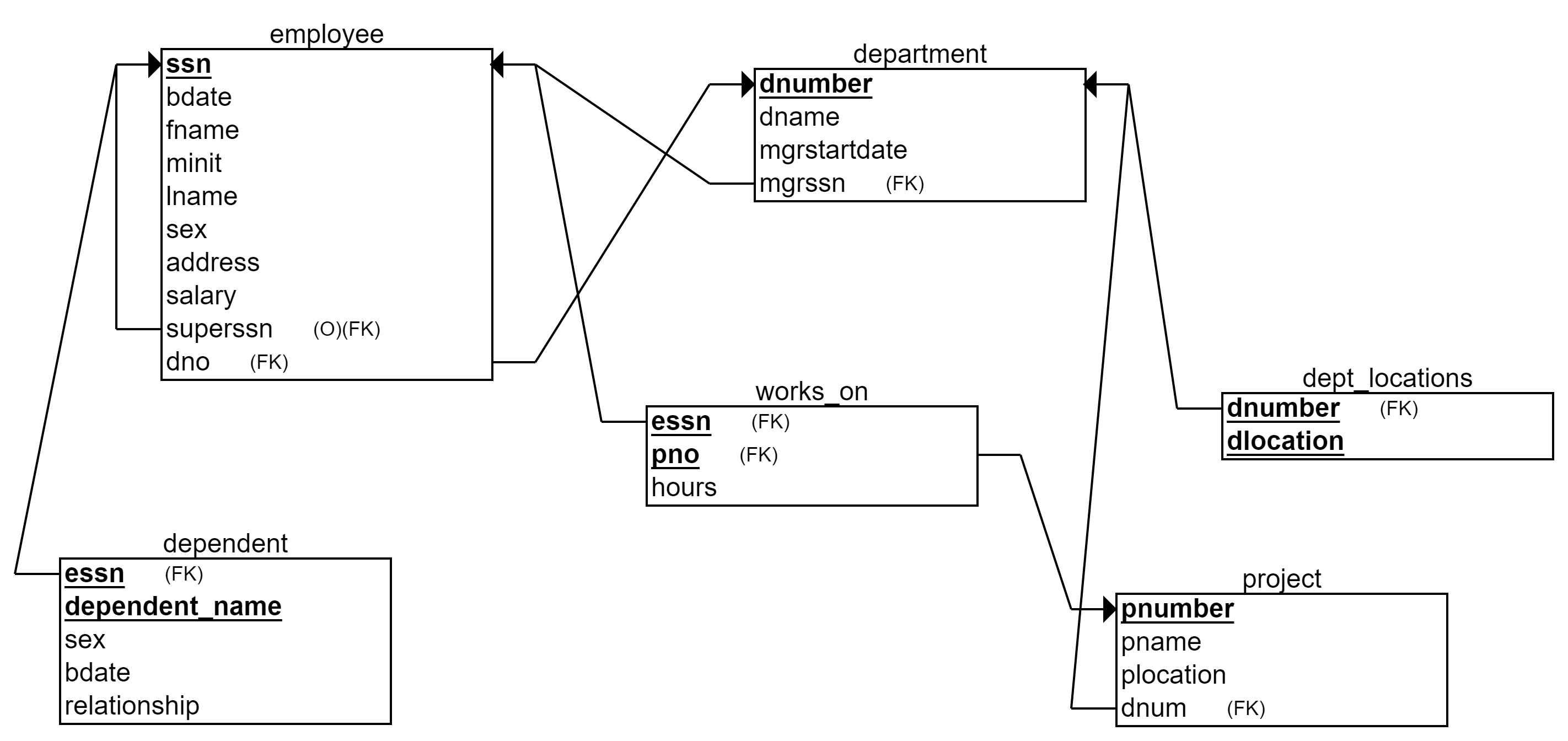
Description of the Company database:
The Company database holds data about organization’s employees, departments, and projects. Each employee works in one department. Each department has an employee as a manager (mgrssn). Employees have supervisors (superssn) that are other employees. Each department can have several locations. The Company has projects, which are managed by departments. Each employee can work in many projects. Each employee can have several dependents (e.g. a spouse and a daughter).
Database for exercises
The database used in the exercises of this tutorial is called a Movie database.
The relational model of the Movie database used in the exercises of this tutorial
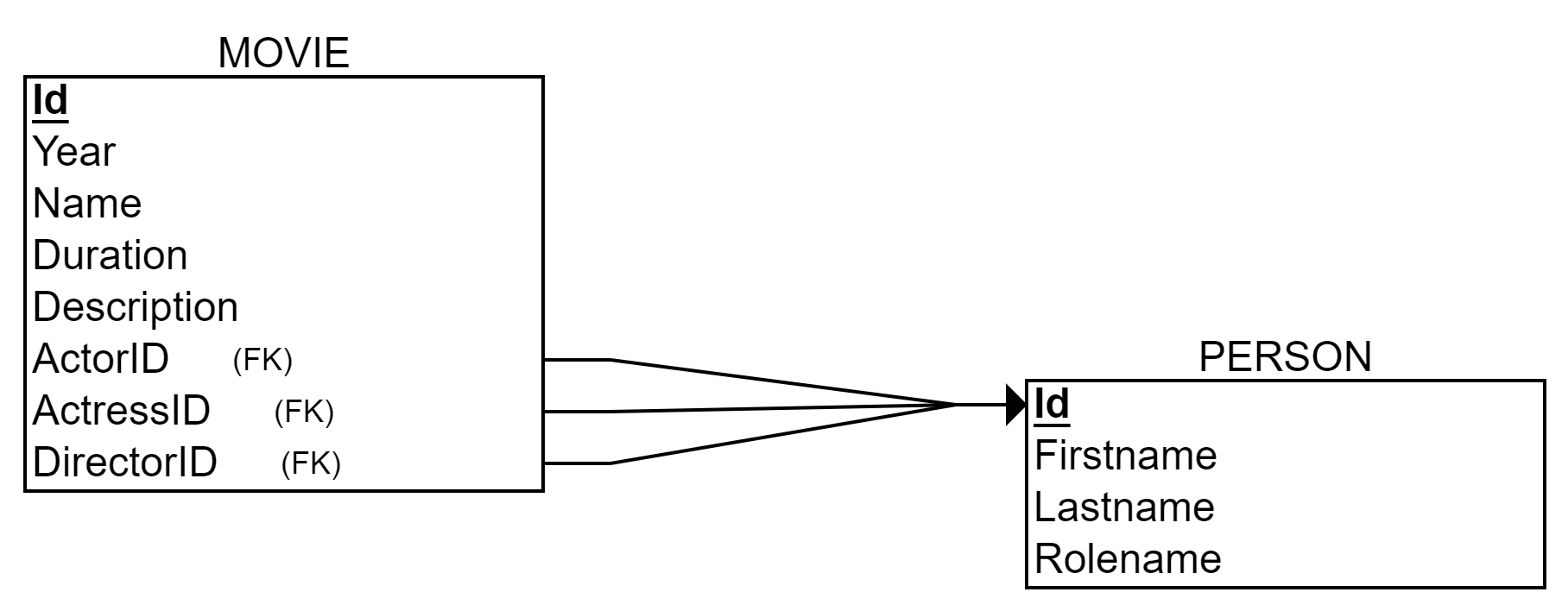 Description:
Movie database is a simple database containing only two tables: Movie and Person. Person-table stores both actors and directors of movies. Movie-table stores different movies with their name, manufactured year, duration and description. ActorID column refers to a leading male actor of the movie, and ActressID correspondingly to a leading female actor of the movie. DirectorID refers to a person who has directed the movie.
Download this and also other forthcoming relational models used in SQL exercises. Most of the exercises contain the description of the database as a relational model in the exercise description.
Executing SQL queries in Ville
See the image below
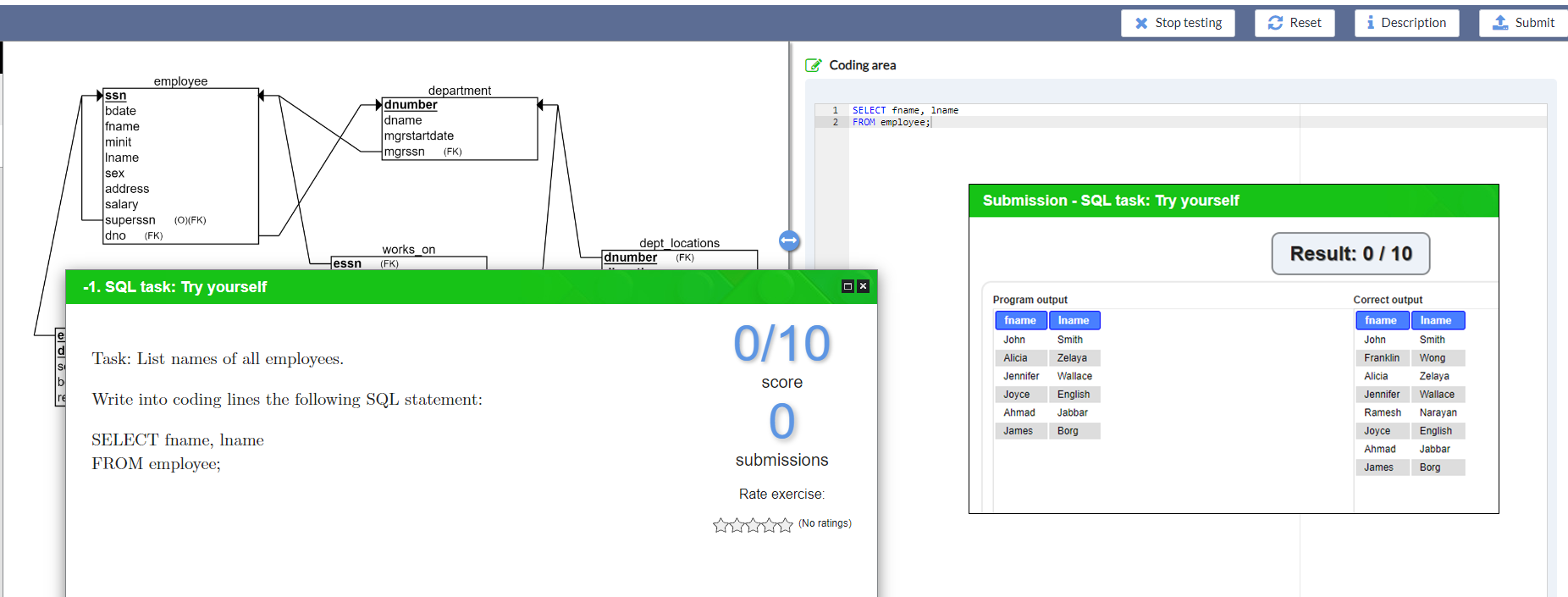
- Description provides the task. Usually, you need to find something specific from the database with one SQL query only.
- The database is described as the relational model on the left.
-
The query is written into the right
Wrapping the SQL code into different lines is not necessary, but recommended for clarity. Uppercase and lowercase letters do not matter in the code (except for certain text searches, of course). -
The query is executed by submitting it (Submit-button)
The system shows both your result table and the correct result table. Compare the results. If the code does not result in a table, the system shows (e.g. syntax) errors in red background (not very detailed though but worth reading). -
You can execute any kind of SQL queries to familiarize with the database content (Company, Movie, or other databases, depending on the task)
The default database is Company, which allows you to copy, paste and execute tutorial examples in any task.
SQL query structure, processing and designing
Basic query structure
In the SELECT statement, you indicate which fields you want to include in the result table. SQL allows duplicates to occur in result tables.
The basic structure of a SQL query/statement is as follows:
**SELECT
Above,
- The
of SELECT part contains the attributes that you want to appear in the response to the query (i.e. resulting table). The order of the attributes in the attribute list determines the order of the attributes in the result table. - The <table list> of FROM part contains the tables that are needed to implement the query, regardless of whether the fields of these tables appear in the response or not.
- The
of WHERE part describe the criteria that satisfy the tuples to be accepted for the response (choice - and connection conditions). - SQL statement ends with semicolon ; (this is not compulsory in all cases / systems, but in case you want to execute queries in a pipeline) The attribute list (in the SELECT part) and the table list (in the FROM part) items are separated by commas. Conditions (in the WHERE part) are separated with words like AND and OR depending on the condition, and each condition is described by a logical operator, such as > (greater than) , < (less than), >= (greater than or equal), <= (less than or equal), = (equal to), != (not equal), <> (not equal).
Example: Retrieve the date of birth and address for all employees who are named ‘John B. Smith’. All the necessary information can be found in the Employee table.
SELECT Bdate, Address FROM Employee WHERE Fname=’John’ AND Minit=’B’ AND Lname=’Smith’;
Above,
- Bdate and Address are separated by comma in the attribute list of SELECT.
- Employee is the only table the query is targeting to, and thus no other tables are named in the FROM part.
- WHERE part contains three conditions that must be true in the same row. In any SQL query, SELECT and FROM parts are compulsory. WHERE-part is optional due to possibly missing conditions.
Example: List names of all employees in Company database.
SELECT Fname, Lname FROM Employee;
If the SQL query does not contain WHERE, the attributes selected in the query are printed from all rows of the table(s) listed in FROM clause. So, the query above lists all (rows of) employees in the Employee table and selects (the columns of) Fname and Lname to be visible in the result table.
Try yourself !
Processing structure of a query
How is the query processed / executed by the database management system?
The numbers in parenthesis below indicate the processing order. Understanding this order may help you in designing and creating better queries.
SELECT [columns] (3)
FROM [tables] (1)
WHERE [conditions] (2)
-First, the FROM sentence is executed and as a result ”the machine” knows table/tables, which are required to answer the question. All rows in these tables are went through!
-Second, if there is a WHERE sentence, i.e. a condition, only the rows that fulfill the condition, i.e. return TRUE, will be left from the above mentioned table(s).
-Third, SELECT takes only the specified columns of the above mentioned rows, and here ”prints” them on the screen in the order specified (or organized by the ORDER BY clause, coming later).
So, in short
- FROM lists all rows from the specified tables
- WHERE lists all rows that satisfy the conditions
- SELECT selects the specified columns from the rows that are left.
Designing a query
1. Think what data is wanted and how could the answer look like as a table.
2. Where is the data to answer the question?
- Know your database!
- Which tables contain the data for 1) the result table 2) for the possible search conditions 3) for the possible links between tables?
-
Write tables into FROM part 3. Does the answer contain every row of table(s)? If not, there is a condition, which defines which data (rows) should be accepted. This condition is either properly linking two tables or defining other serach criteria.
- Write condition to WHERE [column][operator][value] Now you have the correct rows.
4. Finally, think what you want to show (go back to point 1). What columns and in which order? Calculating or counting something as an aggregate value of all rows?
- Write the SELECT sentence.
Conditions in WHERE clause
In the WHERE clause, in addition to complete matching (=), and other logical operators such as >, <, >=, <=, we can use reserved words for comparison in conditions. These are words such as LIKE, BETWEEN, IN, IS NULL (and their negations with the word NOT).
For searching empty cells, i.e. NULL values in some columns, one needs to use IS NULL or IS NOT NULL words.
Example: Search employees without a middle name
SELECT Fname, Minit, Lname FROM Employee WHERE Minit IS NULL;
Substring comparisons
Substring comparisons can be applied to the fields representing the string, date and time type, i.e. to check whether there is a part of the field under consideration that follows a certain pattern (= string).
The LIKE operator is available for this purpose. The pattern to be searched for is written inside single quotation marks.
A string of arbitrary length (including empty) is represented by the symbol %, and a single arbitrary (non-missing) character is represented by an underscore (_).
If the string you are searching for contains the symbols % and _, you must write an identifier in front of them ‒ for example a backslash () ‒ and introduce the used identifier after the model after the option ESCAPE inside single quotation marks.
Example: We are searching for the model ‘AB_CD%EF’. In this case, the search phrase would be of the form
… LIKE ‘AB_CD\%EF’ ESCAPE ‘';
For the same reason, the single quotation marks included in the string should be doubled in connection with queries, so as not to interpret the presentation of the searched string as finished.
Example: The search for the model ‘s-Gravenhage (= longer Dutch version of the name of the city The Hague) would be done with the phrase
… LIKE ‘'’s-Gravenhage’’;
Example: Find all employees whose address contains the string ‘Houston, TX’ somewhere.
SELECT Fname, Lname FROM EMPLOYEE WHERE Address LIKE ‘%Houston, TX%’;
Example: We are looking for all employees who were born in the 1970s (it is assumed that there are no more employees born at least one hundred years earlier). The date is in the format YYYY-MM-DD, so the third character must be the number 7, and the rest, i.e. characters 1-2 and 4-10, can be anything.
SELECT Fname, Lname FROM EMPLOYEE WHERE Bdate LIKE ‘7_____’;
Combining tables with WHERE clause
The WHERE clause is also used to join tables. (Other ways of joining are discussed in the next tutorials.)
In the WHERE clause, tables’ concatenation is done by putting an equal sign between the two attribute names; one of the attributes represents the reference (foreign) key and the other the (primary) key it refers to.
Example: Search employees (firstname, lastname and address) who work in the department named Research.
SELECT Fname, Lname, Address FROM Employee, Department WHERE Dnumber = Dno AND Dname = ‘Research’;
Although all the result fields (Fname, Lname, Address) are in the EMPLOYEE table, the DEPARTMENT table is needed to access exactly the employees of the Research department. The department number is used to connect the tables of the Department and the Employee. Dno-column in Employee-table denotes the Department number in whic the employee works. In this way, the (combined) records that contain the name of the research department can be selected. For example, our employee John Smith has Dno value 5, which indicates that he works in the deparment number 5, that based on the Department table data, is a department called Research.
If several tables have been presented in the FROM clause without a WHERE part or other joining condition, a cross product or Cartesian product between the tables is formed.
Cartesian product A * B means that every row of table A is connected with every row in the table B. In the above context and query, the cartesian product produces wrong tuples: One employee seem to work in every department, and one department has all employees working. See the figure of cartesian product below (i.e. the result when the WHERE clause is missing in the above query). This result can be dangerous if not purposefully performed. Thus, the joining condition must be added to the WHERE part, if tables are separated with comma in the FROM part. See the figure of result correctly linking tables below (i.e. the above query with the condition Dno=Dnumber).
Cartesian product with Employee and Department tables. There are wrong tuples. For example, John Smith works in the department number 5, which is called Research.
The condition Dno = Dnumber in the WHERE clause connects Employee and Department tables correctly through the foreign key (Dno) and primary key (Dnumber). For example, John Smith is now linked only to Research department.
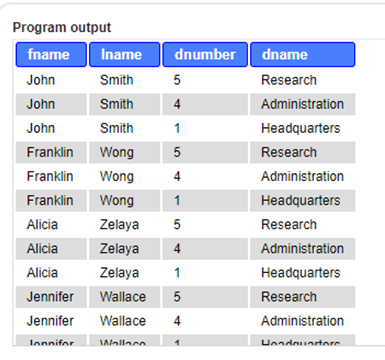 Cartesian product with Employee and Department tables. There are wrong tuples. For example, John Smith works in the department number 5, which is called Research.
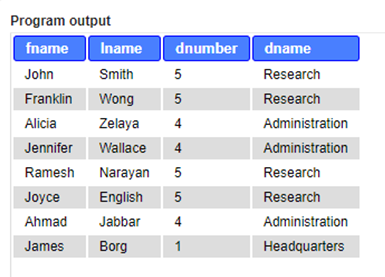 The condition Dno = Dnumber in the WHERE clause connects Employee and Department tables correctly through the foreign key (Dno) and primary key (Dnumber). For example, John Smith is now linked only to Research department.
Another way to consider above query is its order of processing.
- First, in the FROM-part, a cartesian product is made, which produces a table with wrong tuples (see the upper image above).
- Second, each row is went through evaluating the condition Dno = Dnumber, which connects an employee with the correct department (removing false ones).
- Third, each row is went through evaluating the condition Dname = “Research”. Now, only employees of the reseach deparment are left and specified columns printed in the SELECT part. In the above example, we had the condition Dno = Dnumber. Both columns have the same meaning but are differently named. However, different tables can have columns with same name, which makes their interpretation in the same query ambiguous. In these situations we must use dot notation [tablename.columnname] to refer to the specific column. For example, both the table DEPARTMENT describing the department’s information and the table DEPT_LOCATIONS representing the department’s locations both contain the attribute Dnumber. If both of these tables are listed in the FROM clause, and one of the conditions in the WHERE clause applies to an attribute called Dnumber, the condition must state which table’s attribute it is (e.g. WHERE Department.Dnumber = 1). The same applies to any part of the query (SELECT, FROM, WHERE).
Another option is to rename the tables or columns of the tables so that the names in the WHERE, SELECT or FROM clauses become unambiguous. We will return to the use of dot notation and renaming attributes and tables next in the tutorial. We recommend using dot notation in regular, but renaming is also necessary in some cases.
Renaming, selecting all, removing duplicates and sorting the result
Renaming tables and columns
If two attributes with the same name on different tables are referenced in a query, they must be separated from each other either by presenting the name of the referenced table in connection with the name of the attribute, or by aliasing/renaming.
The aliasing is done at the same time as the tables are presented. An abbreviation is defined in the FROM clause by writing the reserved word AS after the table name (can be omitted if desired) and an abbreviation (often one letter).
FROM tablename AS newtablename
Or
FROM tablename t
Aliasing tables (in FROM part) can be thought of as taking copies of the original table, which makes it easier to process the same table from different perspectives: For example, employee and manager are perspectives on the Person table. If we need to use the same table twice in the same query, at least the other needs to be renamed. Each table and column must have a unique name in the query. Later in the tutorials, we learn subqueries, which must be also named, if used in the FROM part.
Renaming in the query does not change table or column names permanently.
Example: We want to list names, numbers and locations of departments.
Two tables are needed: Department, which contains the names of the departments (e.g. Research), and Dept_locations, which contains locations (dlocation). To get correct matches, we must connect the tables with foreign key – primary key, which have the same name in both tables (dnumber).
Option 1: Using the dot notation when necessary:
SELECT department.dnumber, dname, dlocation FROM dept_locations, department WHERE department.dnumber = dept_locations.dnumber;
Option 2: Renaming all the tables and using the dot notation:
SELECT d2.dnumber, dname, dlocation FROM dept_locations AS d1, department d2 WHERE d1.dnumber = d2.dnumber;
Option 3: Renaming one table and its columns:
SELECT departmentnumber, dname, dlocation FROM dept_locations, department AS D(departmentnumber, dname, mgrstartdate, mgrssn) WHERE departmentnumber = dnumber;
Renaming in the SELECT part requires the word AS (unlike in the FROM part). Renaming effects on the name of the column in the result table only. You must use apostrophes around the name if the new name has spaces.
SELECT columnname AS newcolumnname
Or
SELECT columnname AS “new column name in parts”
Selecting all columns with SELECT *
If you want to list all the columns from a table, you can use the star symbol * instead of listing all attribute names.
Example: List all information about employees who work in department 5.
SELECT * FROM Employee WHERE Dno = 5;
If several tables are presented in the FROM part of the query, the star symbol prints the values of the attributes of all the tables participating in the query from the combinations of tuples that meet the conditions.
Example: List all information about employees and their departments.
SELECT * FROM Employee, Department WHERE Dno = Dnumber;
If you want to list all the attributes from the tables mentioned in the FROM part of the query only from a certain table(s), dot notation must be used to determine the desired table(s).
Example: List all information about projects that belong to the research department (however, there is no interest in the department’s information).
SELECT Project.* FROM Project, Department WHERE Dnum = Dnumber AND Dname = ‘Research’;
Math in SELECT
Mathematical operations, such as addition, subtraction, multiplication and division type of calculations, can be done in the SELECT clause. The use of parentheses may be necessary to indicate calculating order.
Like renaming, calculation results show only in the result table, not permanently changing anything in the database.
Example: Calculate how old are the movies. Subtract the current year from the movie’s publication year.
SELECT name, DATE()-year AS movie_age_in_years FROM movie;
Instead of using current year as a fixed number (e.g. 2023), the calculation uses a function DATE() to retrieve the current date and subtracts the value of year for each row in Movies table.
Removing duplicates with DISTINCT
By default, SQL interprets table tuples as a multiset instead of a set. Multiset allows duplicate values. It is designed like this because:
- Removing duplicates requires filtering out the duplicates, which in turn can considerably lower efficiency.
- The user might still be interested in the duplicates.
- When applying aggregate functions duplicates usually have to be taken into account. Aggregate functions are discussed in another tutorial. The option ALL, which accepts duplicates, is the default, so it can be left out when you want duplicates to appear. The listing of duplicates can be prevented with the DISTINCT option.
Example: The manager is interested in how many different pay grades the company has. Therefore, list different salaries of our employees.
SELECT DISTINCT Salary FROM Employee;
Sorting the result with ORDER BY
The rows of the result table can be sorted according to the selected columns in ascending or descending order using the ORDER BY clause.
The ORDER BY clause defaults to ascending (ASC) order. Descending order is achieved with the option DESC.
As the ORDER BY clause just organizes the result table, it is the last clause (in both the writing and processing order), and not to be used in the inner queries (subqueries).
Example: Let’s list the working information of all employees in different projects in alphabetical order (ascending), primarily by the employee’s department and then by last name and first name.
SELECT Dname, Lname, Fname, Pname FROM Department, Employee, Works_on, Project WHERE Dnumber = Dno AND Ssn = Essn AND Pno = Pnumber ORDER BY Dname, Lname, Fname;
If you wanted to list the department names in reverse alphabetical order, but the first and last names in normal alphabetical order, the ORDER BY clause would look like this:
ORDER BY Dname DESC, Lname ASC, Fname ASC;
Note! ASC options can be omitted (=default).